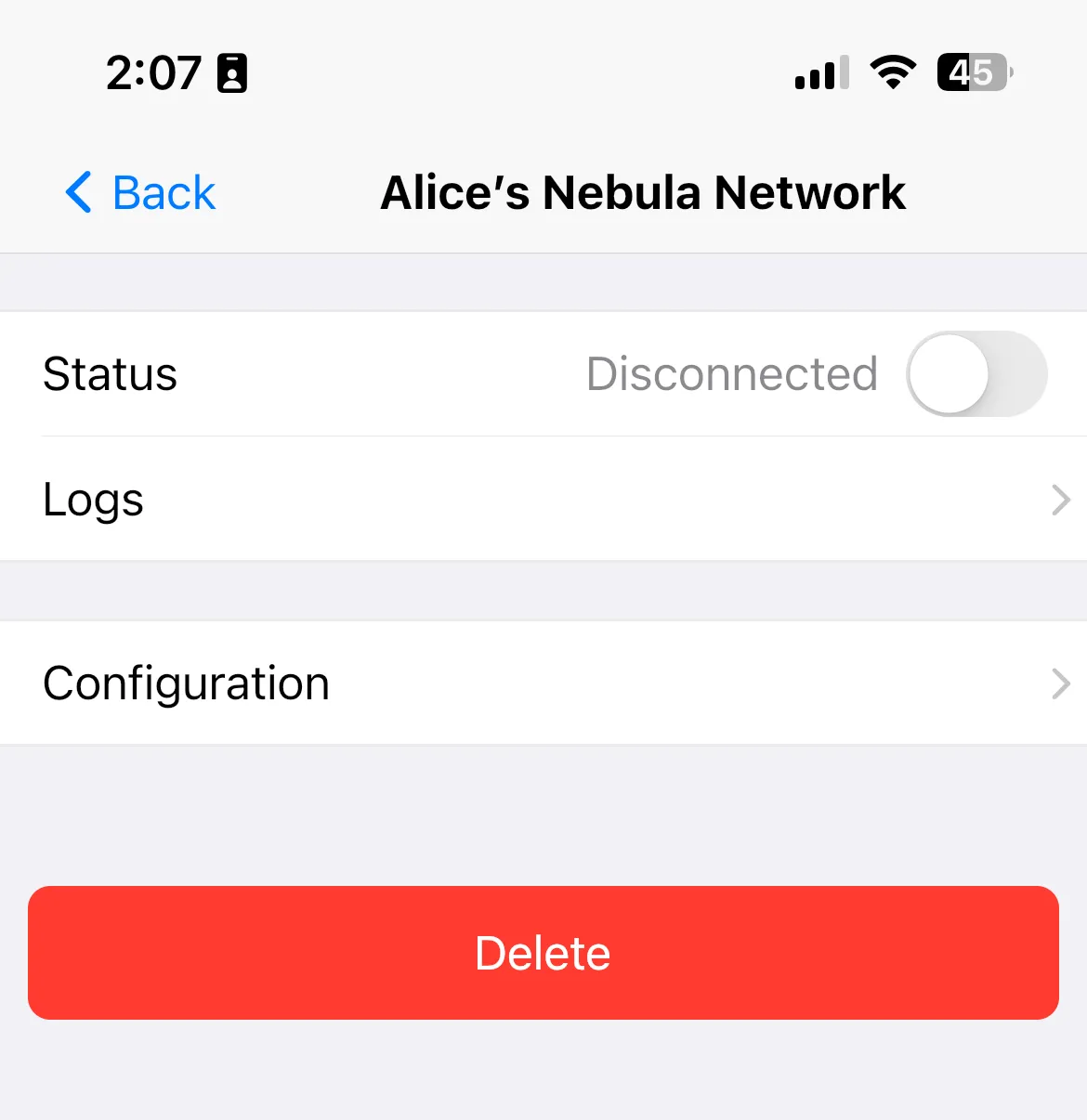

Viewing Nebula logs
This guide explains how to view logs for Nebula in each of the supported platforms. Please note that these instructions are approximations as there are many ways that Nebula can be installed.
Changing the log level
Section titled “Changing the log level”The level of detail is set by logging.level. To turn up logging on a running
Nebula without editing its config, use nebula ctl on the host:
sudo nebula ctl log-level debug# and back again when you are donesudo nebula ctl log-level infonebula ctl log-format json switches the format the same way. A config reload sets both back to the configured values.
journalctl --unit=nebula --followService status
Section titled “Service status”systemctl status nebula# outputs● nebula.service - Nebula overlay networking tool Loaded: loaded (/etc/systemd/system/nebula.service; enabled; vendor preset: enabled) Active: active (running) since Wed 2022-11-30 16:07:48 CST; 2min 3s ago Main PID: 546 (nebula) Tasks: 10 (limit: 4560) Memory: 19.2M CGroup: /system.slice/nebula.service └─546 /usr/local/bin/nebula -config /etc/nebula/config.yml
# ... shows nebula logs ...sudo tail -f /opt/homebrew/var/log/nebula.*Another useful tool for viewing logs is the built-in Console.app.
To access the logs, select File -> Open from the menu and then press Cmd + Shift + G
in the file picker, which will allow you to enter /opt/homebrew/var/log/nebula.log into the textbox.
Service status
Section titled “Service status”launchctl list homebrew.mxcl.nebula{ "StandardOutPath" = "/opt/homebrew/var/log/nebula.log"; "LimitLoadToSessionType" = "Aqua"; "StandardErrorPath" = "/opt/homebrew/var/log/nebula.log"; "Label" = "homebrew.mxcl.nebula"; "OnDemand" = false; "LastExitStatus" = 256; "Program" = "/opt/homebrew/opt/nebula/bin/nebula"; "ProgramArguments" = ( "/opt/homebrew/opt/nebula/bin/nebula"; "-config"; "/opt/homebrew/etc/nebula/config.yml"; );};Windows
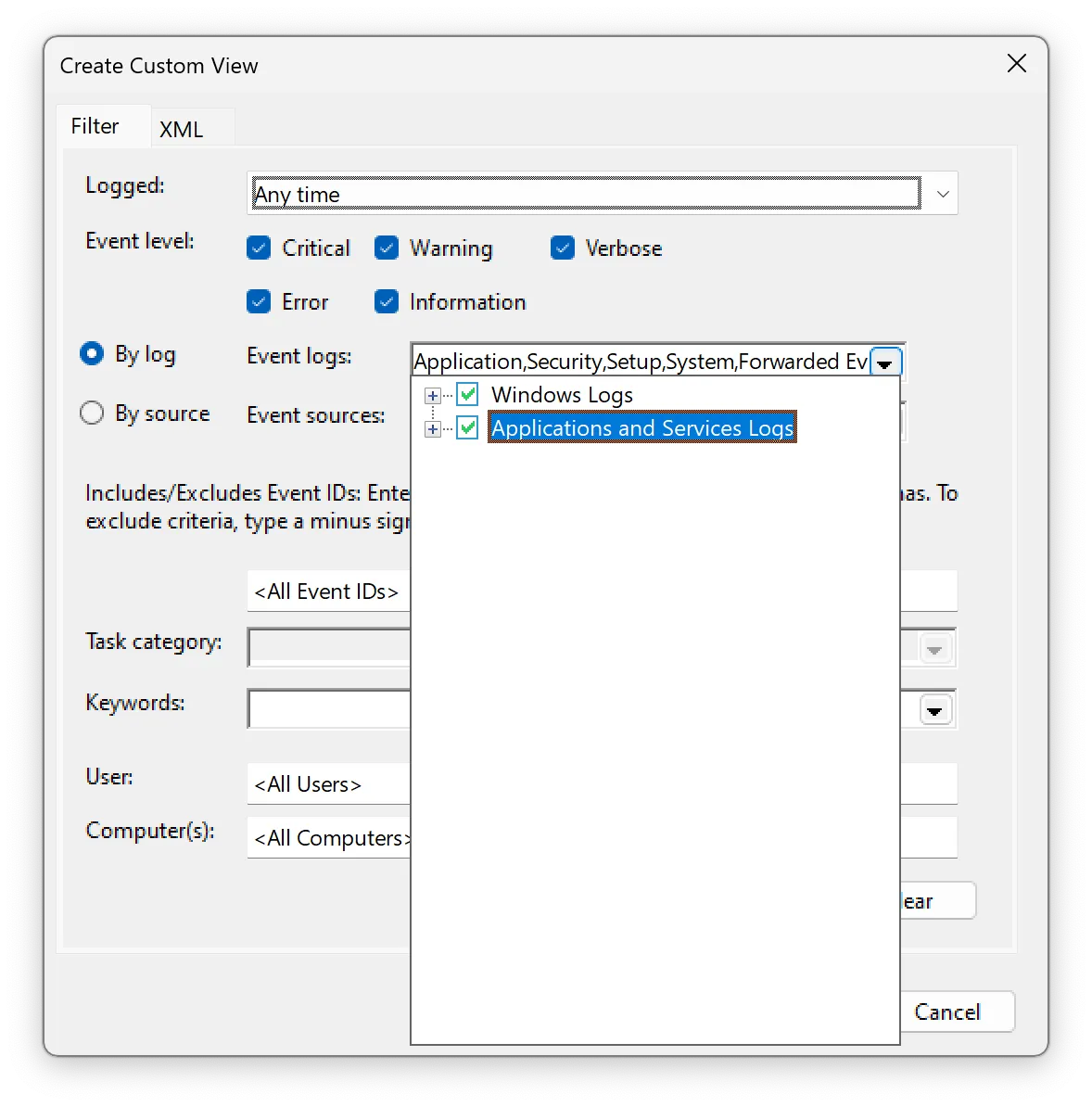
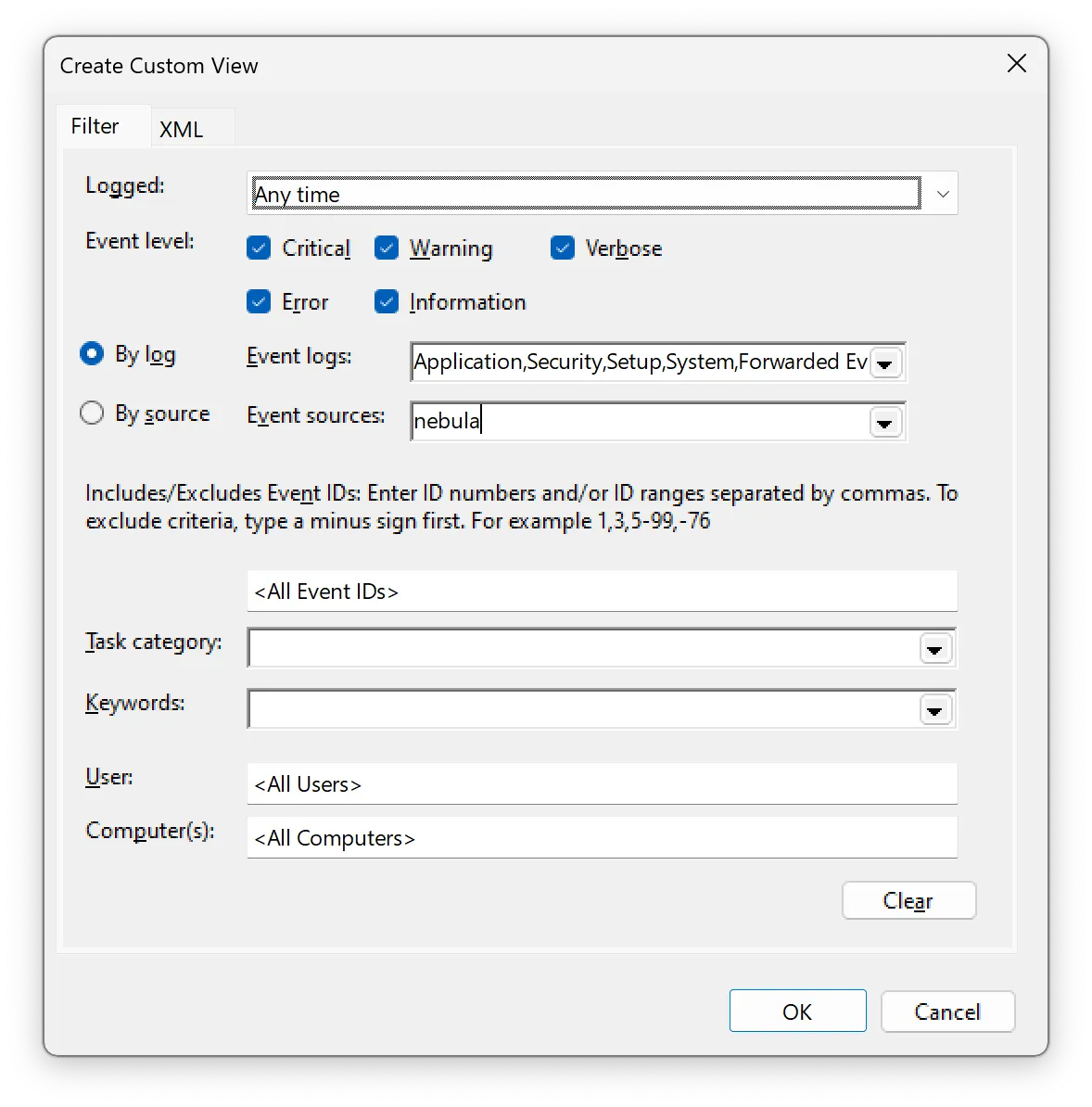
Section titled “Windows”Open the Event Viewer app, click on Custom Views -> Administrative Events -> manually enter nebula for "Event
sources".
You can also make a "Custom View" which filters on the nebula source.
Service status
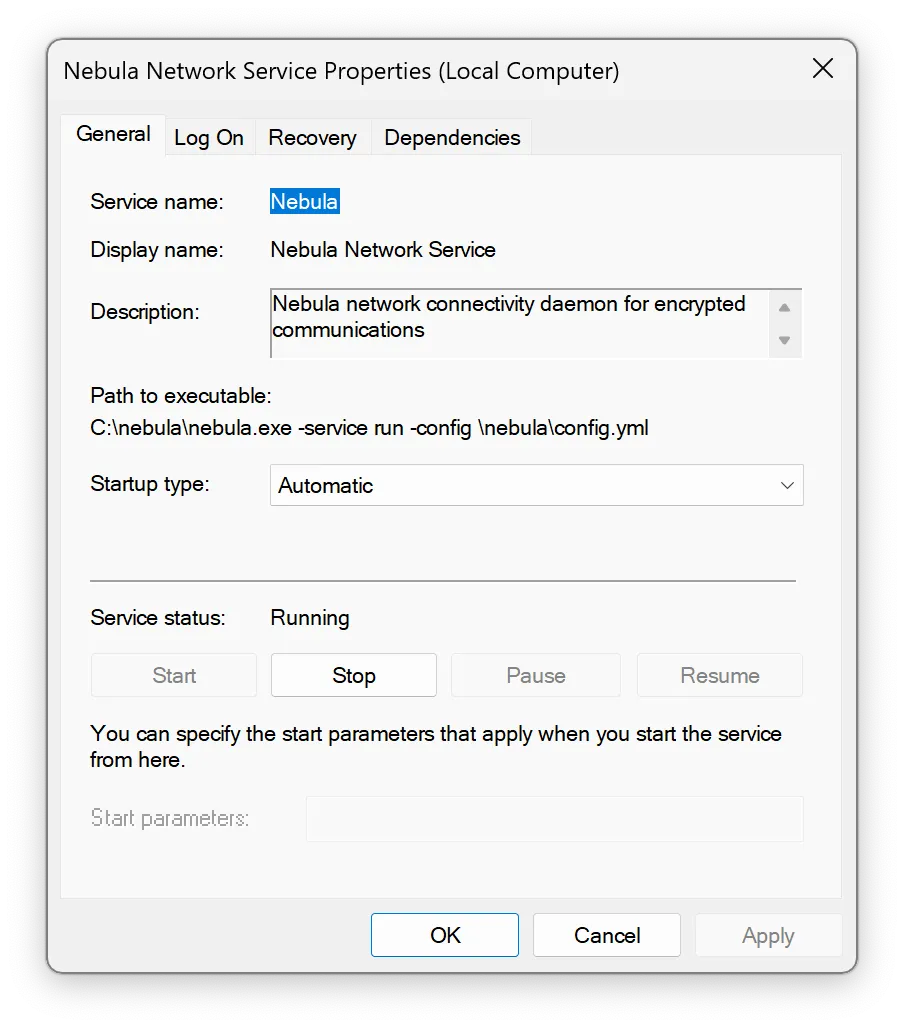
Section titled “Service status”To check the status of the service, open Services app, and find the Defined Networking Client service in the list. You should be able to see the status and start or stop the service.
Android / iOS
Section titled “Android / iOS”Tap on the site in question and tap "View Logs" on the details page for that site. You can then read, share, or delete your logs.